How to Split a PDF Into Separate Files
A 180-page scanned bundle arrives and you need pages 44 to 51 for one person, page 3 for another, and everything except the internal notes for the client. All three of those are different operations, and the fastest route through them depends on knowing which is which.
Split, extract, or remove: pick the right verb
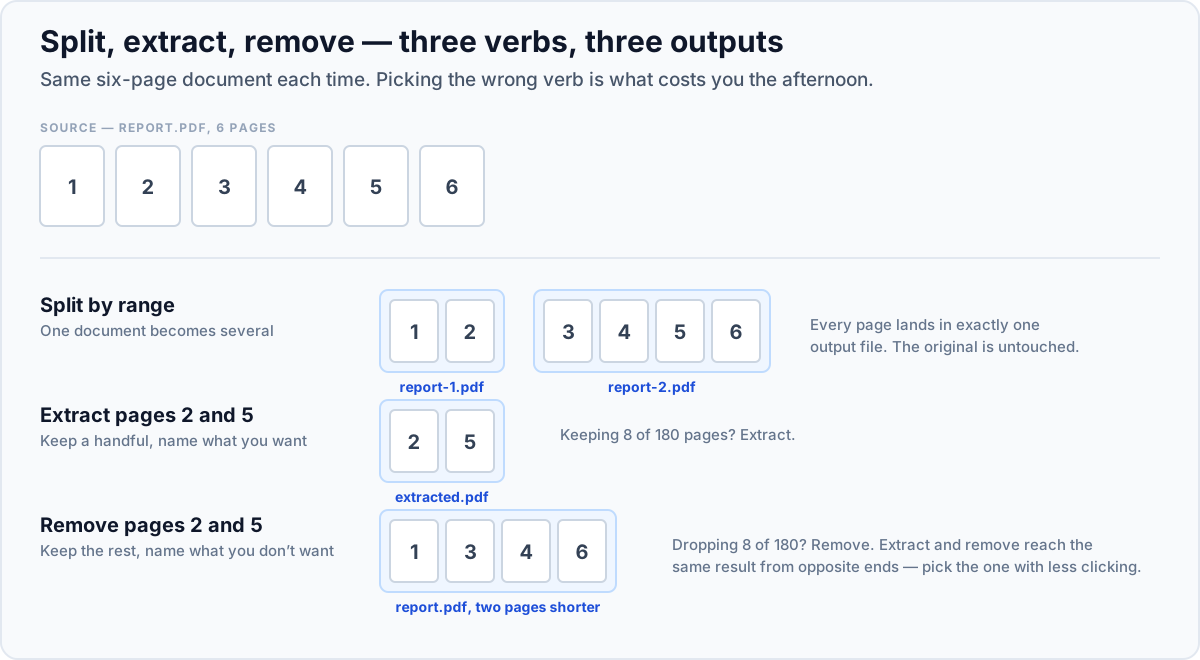
| You want to… | Use | You end up with |
|---|---|---|
| Break one document into several files | Split PDF | Multiple PDFs; the original is untouched |
| Pull a handful of pages into their own file | Extract PDF pages | One new PDF containing just those pages |
| Delete pages you do not want | Remove PDF pages | One PDF, shorter than before |
| Reorder pages inside a document | Rearrange PDF pages | Same pages, new sequence |
The distinction that trips people up is extract versus remove. They produce the same result from opposite directions: extracting pages 44–51 gives you those eight pages; removing everything else gives you those eight pages too. Choose whichever means less clicking. Keeping 8 of 180 pages? Extract. Dropping 8 of 180? Remove.
Splitting a PDF, step by step
- 1Open Split PDF and add your document
Head to Split PDF and drop the file in. It is parsed in your browser — no upload, so even a large confidential bundle stays on your machine.
- 2Choose how to split
By range, when you know the page numbers of each section. Or one file per page, when you need every page separated — common for splitting a batch scan back into individual documents.
- 3Set your ranges against the thumbnails, not your memory
Page numbering is the classic trap: a document whose printed page 1 is the third sheet (after a cover and a blank) means every number in your head is off by two. Confirm boundaries visually before you commit.
- 4Split and download
You get the resulting files back, typically bundled as a ZIP when there are several. Spot-check the first and last page of each part before sending anything.
The page-numbering trap, in detail
PDF tools count physical sheets from 1. The numbers printed on the page are just ink, and they very often disagree with the sheet count:
- Front matter numbered
i, ii, iiibefore Arabic numbering restarts at 1. - A cover page and inside cover that carry no number at all.
- Reports where numbering restarts per chapter.
- Scanned bundles with an inserted separator sheet between documents.
In every one of those cases, a range you derived from the printed numbers will be wrong by a constant offset. The reliable habit: find the sheet index of your first and last page in the thumbnail view, and use those.
Common splitting jobs and how to do them
Separating a batch scan into individual documents
You fed twelve invoices through a document feeder and got one twelve-page PDF. Split it one file per page, and you are done in a single step. If invoices are multi-page, split by ranges instead — and next time, put a blank sheet between documents so the boundaries are unmistakable in the thumbnails.
Sending someone only the section that concerns them
Extract the relevant range into its own file rather than sending the full bundle and saying "see section 4". It is faster for them, and it means the rest of the document is not sitting in their inbox. If the excluded content is genuinely confidential, extracting is also the safe move — redacting by drawing black boxes over text does not delete it, because the text is still selectable underneath.
Getting under an attachment size limit
Splitting a large document into two halves is often better than compressing it into unreadability. Try compressing first at 150 DPI — that usually clears the limit on its own — and split only if it does not.
Removing internal notes before sharing
Remove the pages, then check what is left. Deleting a page removes its content, but if the notes were also summarised in a cover sheet or referenced from the table of contents, you have work left to do.

Set page ranges or split every page into its own file. Runs entirely in your browser — the document is never uploaded.
Split a PDFWhat happens to the rest of the document
- Quality is unchanged. Pages are copied, not re-rendered. Text stays text and images keep their resolution.
- File size does not scale linearly. A 10-page extract from a 100-page file is rarely a tenth of the size, because fonts and shared resources have to be carried along. Extracting one page from a big document can still produce a surprisingly large file.
- Links and bookmarks pointing outside the range break. An internal link to page 90 has nowhere to go once you extracted pages 1–20.
- Digital signatures are invalidated. Any change to the bytes breaks the signature, which is the whole point of a signature.
- Encrypted files must be unlocked first. Use Unlock PDF with the password you hold, split, then re-apply protection with Protect PDF if the parts are still sensitive.




